





Facing a "MySQL shutdown unexpectedly" error in XAMPP is a nightmare for developers. Whether it's a power failure or a forced restart, learning how to recover a corrupted MySQL database from XAMPP logs is a critical skill. This guide provides a proven technical workflow to bring your tables back to life without losing your precious local development data. Before proceeding, if you are handling sensitive info, you might want to encrypt sensitive database fields to ensure security during the move.
Understanding MySQL Corruption in XAMPP
XAMPP typically uses the InnoDB engine, which relies on a central tablespace file (ibdata1) and transaction logs (ib_logfile0, ib_logfile1). When these files become desynchronized, MySQL fails to initialize. Unlike a simple cybersecurity audit, fixing a database crash requires manual file manipulation. Statistics suggest that over 60% of local MySQL failures in XAMPP are due to ibdata1 mismatch errors.
Step 1: The Emergency Backup
Never attempt a recovery on your only copy of the data. Before touching any logs, perform a physical backup of the entire directory.
- Navigate to your XAMPP installation folder (usually
C:\xampp\mysql\). - Copy the data folder.
- Paste it elsewhere and rename it
data_backup_timestamp.
Step 2: The Log-Based Recovery Process
This is the most effective method that uses XAMPP's internal backup folder to rebuild the environment while keeping your specific database files. This process is as precise as when you optimize React applications for Core Web Vitals; every step matters.
| File/Folder | Action |
|---|---|
| mysql/data | Rename to data_old |
| mysql/backup | Copy all contents to a new data folder |
| data_old/(your_db) | Copy your database folders to the new data |
| data_old/ibdata1 | Copy and replace in the new data folder |
Executing the Restore
Once you have moved the database folders and the ibdata1 file, do NOT copy the mysql, performance_schema, or phpmyadmin folders from data_old. Those should stay as the fresh versions from the backup directory. This ensures the system tables remain uncorrupted while your data is restored. If you are working on a larger scale, consider how to deploy a full-stack application using serverless architecture to avoid local environment headaches.
Alternative: Using InnoDB Force Recovery
If the above method fails, you can tell MySQL to ignore certain errors via the my.ini file. This is useful for exporting data that is otherwise inaccessible.
- Open the XAMPP Control Panel and click Config next to MySQL.
- Select my.ini.
- Find the
[mysqld]section. - Add this line:
innodb_force_recovery = 1. - Try to start MySQL. If it fails, increase the number up to 6.
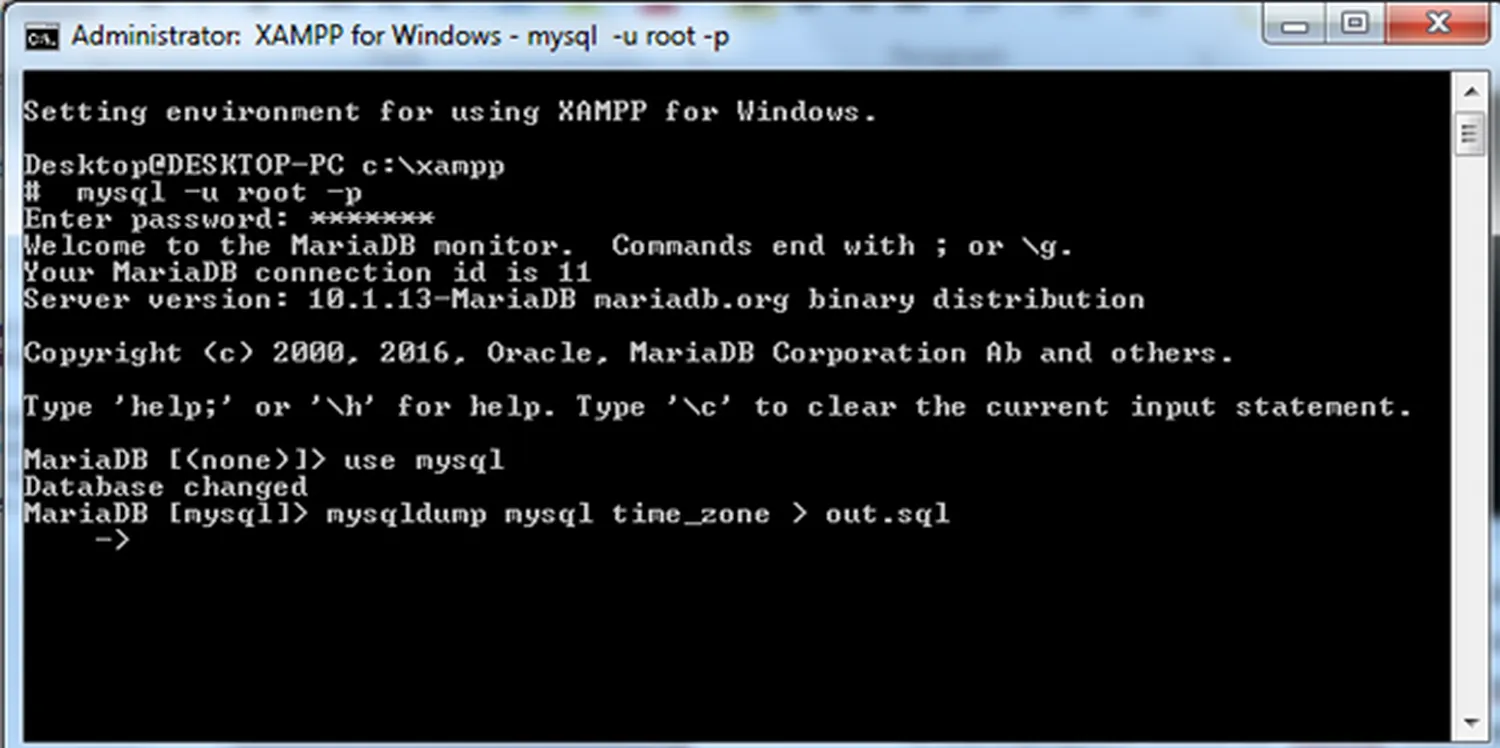
Warning: Recovery modes 4-6 can permanently delete data. Use them only to perform a mysqldump once the service starts. For those looking to automate these types of fixes, learning how to use prompt engineering to automate coding tasks can help generate recovery scripts faster.
Preventing Future Data Loss
To ensure you never have to ask how to recover a corrupted MySQL database from XAMPP logs again, follow these qualitative best practices:
- Always stop MySQL via the XAMPP Control Panel before closing the app.
- Schedule Backups: Use a simple batch script to export
.sqlfiles daily. - UPS Protection: Use an Uninterruptible Power Supply to prevent hard shutdowns.
Frequently Asked Questions
Why shouldn't I copy the ib_logfiles?
The ib_logfile files contain pending transactions. If they are corrupted, they will prevent the service from starting. Deleting them forces MySQL to create fresh logs based on the ibdata1 file.