





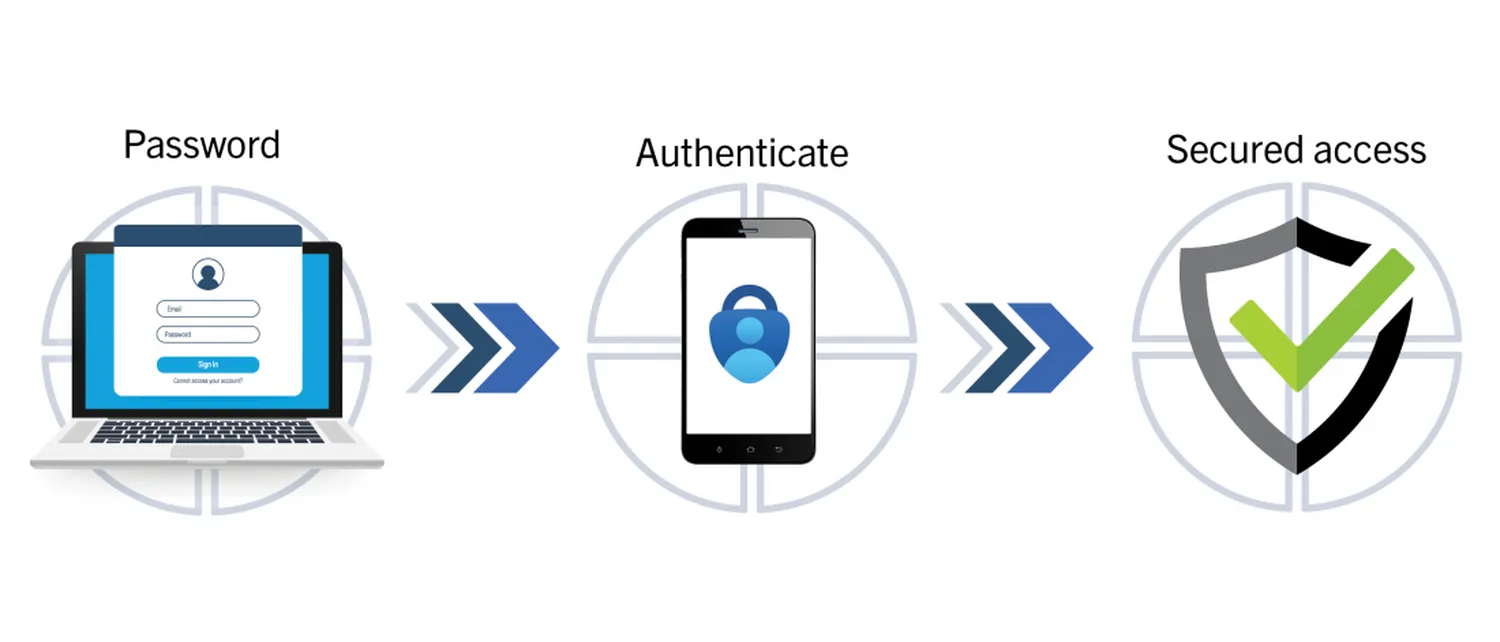
Understanding how to set up multi-factor authentication (MFA) without using SMS is one of the most critical steps you can take for your digital security. While SMS-based codes were once the standard, they are now highly vulnerable to "SIM swapping" attacks and intercepting. In 2026, relying on a text message to secure your sensitive data is no longer enough. Modern cybercriminals can easily bypass SMS, making it essential to switch to app-based or hardware-based authentication.
Why SMS-Based MFA is a Security Risk
SMS messages are sent over unencrypted cellular networks. This makes them susceptible to various man-in-the-middle attacks. Furthermore, if you are looking to implement a Zero Trust security framework for remote teams, you'll find that SMS fails the rigorous verification standards required by modern architecture. It lacks the "proof of presence" that hardware keys or biometric scans provide.
The Best Alternatives to SMS Authentication
When you move away from SMS, you have three primary options that offer superior protection:
- Authenticator Apps (TOTP): Apps like Google Authenticator or Authy generate a time-sensitive code locally on your phone.
- Hardware Security Keys: Physical devices like YubiKeys that require a touch to authenticate.
- Biometrics: Using FaceID or fingerprint sensors integrated into your device via Passkeys.
Integrating these methods is a core part of how businesses conduct a comprehensive cybersecurity audit for small businesses to ensure zero vulnerabilities in user access points.
Step-by-Step: How to Set Up MFA Without Using SMS
Follow these steps to transition your accounts to a more secure authentication method:
- Download a Trusted App: Install an authenticator app (e.g., Microsoft Authenticator or Bitwarden) on your smartphone.
- Access Security Settings: Log in to the service you want to secure (e.g., Gmail, Banking, or GitHub) and navigate to "Security" or "Two-Step Verification."
- Select "Authenticator App": Choose this option instead of "Text Message/SMS."
- Scan the QR Code: Open your authenticator app, tap "Add Account," and scan the QR code displayed on your computer screen.
- Backup Recovery Codes: This is the most important step. Save the provided "Recovery Codes" in a secure place in case you lose your phone.
MFA Method Reliability Comparison
| Method | Phishing Resistance | Ease of Use |
|---|---|---|
| SMS Code | Low | High |
| Auth App | Medium-High | Medium |
| Security Key | Very High | Medium |
Advanced Security for Large Enterprises
For those managing high-stakes data, learning how to set up multi-factor authentication (MFA) without using SMS is just the beginning. You may also need to encrypt sensitive database fields using post-quantum algorithms to ensure that even if an account is compromised, the underlying data remains shielded from future decryption threats.
Furthermore, robust MFA is your primary wall to protect your business from AI-generated deepfake phishing, where an attacker might mimic a voice to ask for an SMS code, but cannot mimic the physical possession of a hardware key.
Frequently Asked Questions
What happens if I lose my phone with the Authenticator app?
This is why you must save your Backup Recovery Codes during setup. You can use these codes to log in and reset your MFA on a new device.
Do I need internet for an Authenticator app to work?
No. TOTP apps generate codes locally based on time; your phone does not need a data connection to show the code.
Final Thoughts
Moving your security strategy to MFA without SMS is a non-negotiable task in 2026. By using apps or physical keys, you eliminate the biggest weakness in the authentication chain and ensure your identity remains yours alone.