





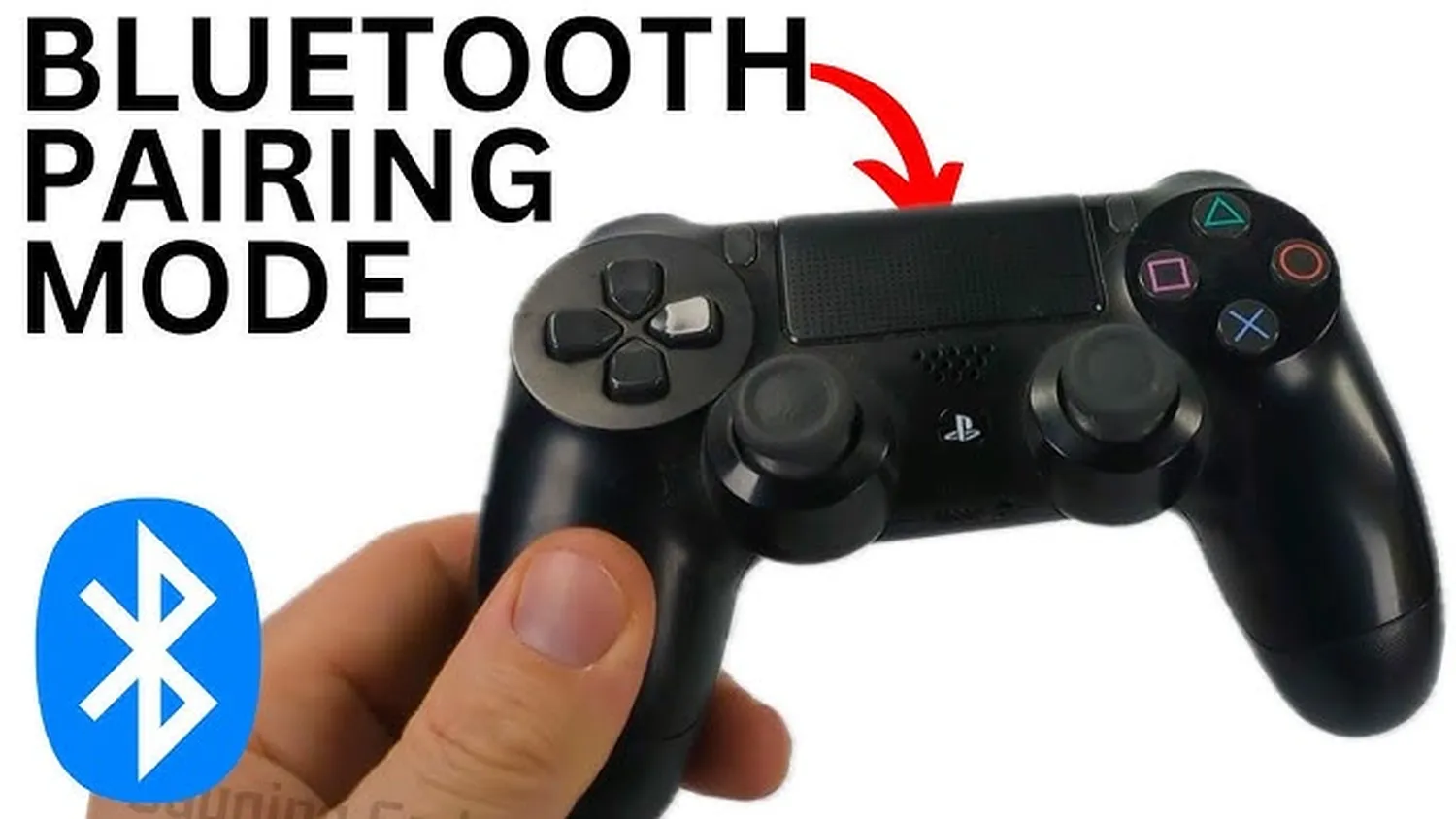
Learning how to connect ps4 controller to phone via bluetooth completely transforms your mobile gaming layout. Whether you want to enjoy competitive shooter titles or dive into open-world RPGs on your smartphone screen, playing with a console game controller offers precise control layouts that touchscreen inputs cannot match. This step-by-step walkthrough details how to put your controller into pairing mode, activate phone settings, configure connection profiles, and eliminate input delay.
Using hardware configurations for remote operations matches setup mechanics found when exploring how to connect bluetooth speaker to smart tv interfaces seamlessly. Before attempting connection, confirm that your controller has at least a 25% battery level to prevent random wireless disconnects.
System Compatibility Matrix
Most modern operating system variations support the Sony DualShock 4 gamepad natively without requiring software modifications or root access privileges. Review the standard baseline metrics to ensure full stability during gameplay sessions:
| Platform | Minimum Version | Connection Profile |
|---|---|---|
| Android | Android 10 or newer | Wireless Controller HID |
| Apple iOS | iOS 13 or newer | DualShock 4 Wireless |
| Bluetooth | Bluetooth 4.0 LE | Standard Pairing RF |
If your device matches these system standards, you can proceed directly to wireless configuration profiles. This setup framework feels just as fast as discovering how to listen to music offline without data when organizing travel media setups.
Putting the PS4 Controller into Pairing Mode
Your DualShock 4 gamepad will not appear in the smartphone menu list unless it is broadcasted openly. To activate the pairing broadcast, follow this quick physical button sequence carefully:
- Ensure the PS4 controller is completely turned off (the light bar must be dark).
- Press and hold the Share Button and the PS Button simultaneously.
- Keep holding both buttons for 3 to 5 seconds until the back light bar begins flashing white quickly.
- Release the buttons immediately once the double-blink flashing pattern stays consistent.
Connecting to Android Phones
Once the gamepad is actively blinking, you need to navigate your Android interface to capture the signal. Use this precise sequence to successfully complete the binding:
- Swipe down from the top of your Android screen and open the Settings app.
- Tap on Connected Devices or Bluetooth options.
- Select Pair New Device to initiate an active scan for surrounding accessories.
- Look under the available electronics list and select Wireless Controller.
- Confirm the pairing request popup notice by pressing Pair.
When connected correctly, the flashing white light bar turns into a solid blue or pink accent color. You can instantly open mobile titles or use it to scroll menus smoothly. Getting this link finalized feels as direct as handling media management files like figuring out how to download songs from boomplay to phone storage options securely.
Connecting to iPhone (iOS)
Apple smartphones utilize identical pairing signals but display the item names slightly differently. Follow these commands to link up your iPhone:
- Launch the primary Settings interface on your iOS smartphone.
- Tap the Bluetooth category menu and toggle the slider switch to green (On).
- Look under the active line list titled Other Devices.
- Tap on the item marked DUALSHOCK 4 Wireless Controller.
- Wait a moment until the item moves up into the My Devices list displaying a connected status tag.
For additional deep customization setups on Apple hardware, check out the official Apple Support Portal to manage controller touchpads or custom button remapping within individual game profiles.
Troubleshooting & Common Fixes
If you encounter lag problems or failed connection attempts during initial configurations, apply these proven adjustments immediately to fix standard errors:
- Controller Disconnects Frequently: Charge the controller fully. Weak lithium batteries drop signal strength rapidly on mobile connections.
- Incorrect Password Request: If your mobile screen prompts for a PIN code during connection steps, type
0000or1234to clear authentication screens. - Buttons Do Not Register: Unpair the device completely from settings, restart the smartphone, and link the controller again from scratch.
- Console Interference: If your PS4 console turns on automatically while pairing, unplug the power brick of the console to clear nearby signals.
Conclusion
Mastering how to connect ps4 controller to phone via bluetooth creates a seamless mobile gaming solution. By setting the correct pairing states and matching operating parameters, you can bypass clunky touchscreen layouts completely. Charge up your accessories, sync your profiles, and enjoy top console handling on your mobile travels.