





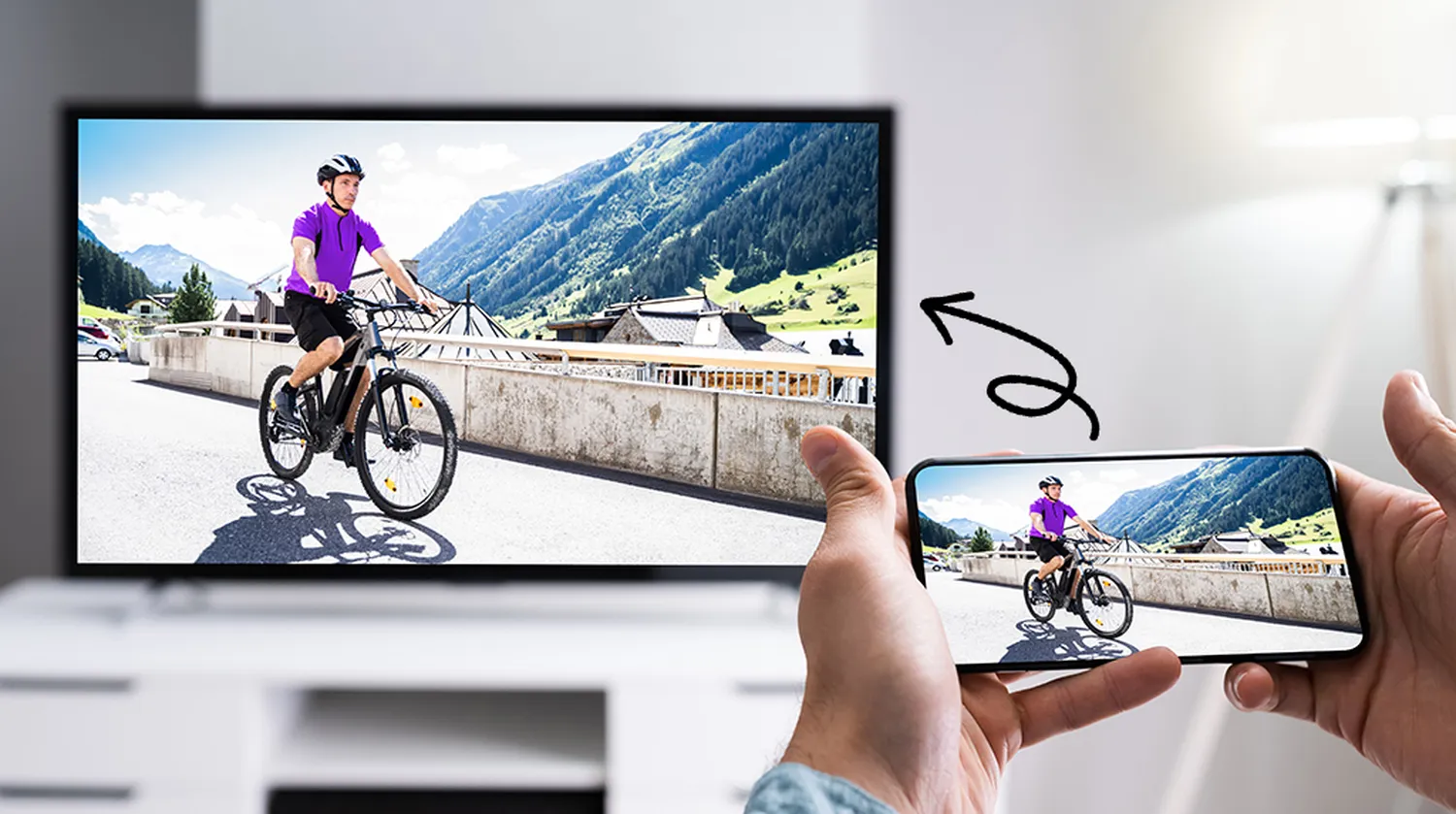
Transforming your compact smartphone into a dynamic home cinema setup is easier than ever. Learning exactly how to connect phone to tv to watch movies allows you to ditch the small screen and enjoy your favorite blockbusters, viral clips, and personal video collections on a grand scale. Whether you are using a modern Android flagship, an Apple iPhone, a cutting-edge smart TV panel, or a classic non-smart television display, multiple reliable linking methods exist to establish an instant connection.
In this comprehensive guide, we will break down the absolute best wireless casting methods and wired adapter configurations. This ensures high-definition video playback and synchronized audio without any frustrating lag. If you are also figuring out alternative ways to source great cinema titles before setting up your display, check out our insights on how to find good movies to watch on netflix or discover ways on how to watch free movies online without downloading.
1. Wireless Connection Methods (Chromecast, AirPlay & Mirroring)
Wireless connections offer the ultimate convenience, letting you lounge comfortably on your sofa while fully managing playback from the palm of your hand. These methods depend completely on your home network ecosystem.
Using Google Chromecast or Integrated Cast Software
Google’s proprietary casting technology is incredibly popular due to its versatility across both Android devices and iOS systems. Many modern displays from major manufacturers come with this feature pre-installed directly into the main operating system.
- Ensure that both your smartphone and your display unit are logged onto the exact same local Wi-Fi router frequency band.
- Fire up a compatible playback app (such as YouTube or Netflix) and look closely for the dedicated Cast icon (a rectangle featuring small radio wave bars).
- Tap the symbol, pick your designated display screen from the animated pop-up list, and watch your media stream seamlessly to the big screen.
Using Apple AirPlay for iOS Devices
If you live within the Apple hardware landscape, utilizing native AirPlay processing offers a completely seamless, high-fidelity option for streaming video files.
- Verify that your Apple iPhone and your AirPlay-compatible television framework share access to the same local internet access node.
- Swipe down elegantly from the upper-right corner of your interface glass to launch the system Control Center.
- Tap the overlapping display icon labeled Screen Mirroring.
- Select your target display unit, enter any safety verification numbers displayed on the television screen, and start watching.
Once connected, you can easily control settings directly on your device. For instance, if plans change during your streaming session, you might want to know how to cancel netflix subscription on phone or discover fast asset downloads via our manual on how to download movies from telegram fast.
2. Wired Connection Methods (HDMI & USB Cables)
When local wireless networks become unreliable or slow, physical connection lines provide an unbreakable backup. Wired connections eliminate lag entirely and deliver stunning pixel clarity without needing a router connection.
USB-C to HDMI Cable Setup
The vast majority of modern Android smartphones use a standardized physical output architecture that supports Direct DisplayPort capabilities.
- Purchase a high-grade, shielded USB-C to HDMI adapter cable.
- Plug the smaller reversible male head smoothly into your mobile phone's lower charging terminal.
- Insert the wider opposite end into an available input port on your television module.
- Pick up your television's original remote control, press the Source/Input button, and toggle over to match the corresponding active number port. Your mobile system layout will immediately clone onto the screen.
3. Quick Setup Comparison Table
To help you decide which approach fits your current entertainment environment best, review this straightforward comparison of each functional pathway:
| Connection Style | Ideal Use Case | Resolution Ceiling | Internet Needed? |
|---|---|---|---|
| Google Cast | Android / Smart TVs | Up to 4K Ultra HD | Yes (Local Network) |
| Apple AirPlay | iPhone / Apple TV | Up to 4K Ultra HD | Yes (Local Network) |
| HDMI Cable | Zero Lag / Non-Smart TVs | Uncompressed 4K | No (Offline Files Work) |
4. Troubleshooting Quality Bottlenecks
If your stream stutters or drops frames, try these quick fixes to get your movie night back on track:
- Wi-Fi Network Congestion: Dual-band wireless routers broadcast on both 2.4 GHz and 5 GHz bands. For uninterrupted movie streaming, move both devices to the faster 5 GHz band. For more details on checking your home network performance, look at the official guide on Google Chromecast Network Optimization.
- Aspect Ratio Distortion: If black bars surround your television image, open your phone's display settings and adjust the output aspect ratio to fit a standard 16:9 widescreen layout.
- Audio Routing Faults: If sound continues to play from your phone speakers instead of your home audio system, disconnect the link momentarily, clear your device cache, and restart your connection.
5. Frequently Asked Questions (FAQs)
Can I connect my phone to a non-smart TV?
Yes. You can use a physical USB-C to HDMI adapter cable or plug a dedicated media streaming stick (like an Amazon Fire TV Stick or Roku) directly into the back of your television.
Why does the video freeze while the audio keeps playing?
This is usually caused by low local network bandwidth. Try restarting your home router, lowering the video quality settings inside your app, or switching to a physical HDMI wire setup.
Do I need an active internet plan to mirror via an HDMI cord?
No. Physical wire paths send signals directly between your hardware terminals locally. This means you can play offline movie files perfectly without using any data or internet connection.
Conclusion
Mastering how to connect phone to tv to watch movies unlocks a whole new world of home entertainment. Whether you choose the wireless freedom of Chromecast and AirPlay or the ultra-stable, plug-and-play reliability of an HDMI cable, setting it up takes only a few moments. Simply choose the option that matches your hardware, dim the lights, grab some popcorn, and enjoy a true big-screen cinematic experience right from your phone.